This article will help you with Understanding and Managing Calendar Availability with Planning Guides in Vetstoria + ezyVet.
1. How to use the calendar in the UI
c) eBooking
3. Handling double parked planning guides
4. Handling users & resources across multiple departments
5. Using planning guides vs appointments for block outs/unavailability
6. Enabling the ezyCab service
7. How does availability work after configuring planning guides?
How to use the calendar in the UI
By navigating to the Dashboard (yellow tab) users can find the calendar.
Users can customize which resources and dates are displayed on the calendar by using the radio buttons and date selector on the left of the window.
Users can change the editing mode from Appointments to Planning Guides by selecting the gear icon on the top-right of the window. This will allow users to swap between setting up planning guides and creating appointments. Changing the editing mode will impact the opacity of the elements within the calendar.
Record opacity
There are three views (edit modes) in the ezyVet calendar that impact record opacity - Appointments, Planning Guides and eBooking.
Appointment View
- Appointments records are completely opaque
- Double-clicking on an appointment record will open the associated clinical record.
- Planning Guides are translucent.
- Single-clicking on a planning guide record will open an appointment window where you can create an appointment of the planning guide type displayed.
- eBooking guide records are not visible.
Planning Guides view
- Planning guide records are completely opaque
- clicking on a planning guide record will open the planning guide and allow you to edit it.
- Appointment records are translucent.
- Appointments are not editable when in Planning guide view mode.
- eBooking guide records are not visible.
ebooking
- eBooking guide records are completely opaque
- Double-clicking on an eBooking guide record will open the eBooking guide and allow you to edit it.
- Appointment records are not visible.
- Planning guide records are not visible.
Handling double parked planning guides
- It’s not uncommon to allow bookings for many types of appointments for a given time period. In the example below it’s visible that from 12pm to 3pm Anakin is allowing bookings for both Vaccinations and Consults on the Death Star. This doesn’t mean that a Vaccination and a Consult appointment can be booked at the same time; rather it allows the option to book one or the other.
- In this example, in order to follow best practices, a Block Out - Unavailable planning guide was put in place for Anakin during that time period on Tattooine.
Handling users & resources across multiple departments
- When a vet record is bookable in multiple locations within an ezyVet site, planning guides are an important tool to utilize to avoid double-booking as the vet can only be in one place at a time. In this case, if the vet is accepting bookings in one location it makes sense to consider blocking their availability in the other location. In this case, a planning guide should be created with the appointment type of Block Out - Unavailable
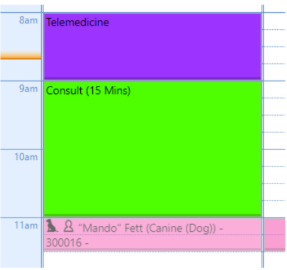
In the example shown below, because Anakin can only be in one place at a time, planning guides have been created for Telemedicine appointments and Consult appointments on the Death Star between 8am and 11am and a Block Out - Unavailable planning guide has been created for Tattooine. This indicates that no appointments should be booked for Anakin on Tattooine for that period.
It’s notable that Anakin has an appointment to see Mando at 11am on the Death Star. Because he’s on the Death Star, an un-labelled, translucent planning guide was automatically created on the Tattooine schedule at the time of the Death Star appointment to show that Anakin is busy at that time. This should prevent him from being double-booked.
Using planning guides vs appointments for block outs/unavailability
When blocking out a resource’s availability for a specific location, a planning guide should be implemented as shown in the example above. Planning guides should also be used when a resource is constantly unavailable at a specific time of day. Examples being a lunch break, closing hours for the location or if the resource is working at another location. When blocking out a resource’s availability for all locations at a specific time, an appointment can be used. Examples could be if the resource is unwell and can’t attend work for a period or is on PTO
Enabling the ezyCAB service
The ezyCAB service is utilized by us to gain visibility on the planning guides and appointments on your ezyVet instance, it’s enabled in the UI by navigating to your integration record and selecting the connect button shown below.
Once enabled, the button will be grey.
How does availability work after configuring planning guides?
By default, the timeslots returning from ezyVet are generated sequentially starting at 12 a.m. based on the appointment duration. The planning guide must fully span the required appointment type duration for the slot to be considered valid and bookable.
Looking at the above screenshot, the Consult planning guide is set up from 4 pm to 5 pm for the resource.
- If the appointment duration in Vetstoria is set to 15 minutes, availability will be reported in 15-minute intervals based on the planning guide’s appointment type (e.g., Consult). This means time slots such as 4:00 pm, 4:15 pm, 4:30 pm, and 4:45 pm will be offered to clients.
- If the appointment duration in Vetstoria is set to 30 minutes, availability will be reported in 30-minute intervals based on the planning guide’s appointment type (e.g., Consult). This means time slots such as 4:00 pm, and 4:30 pm will be offered to clients.
However, if you would like to present 30 minute appointments in 15-minute intervals, this can be accommodated with the help of a support team member. In doing so, the 4.00pm, 4.15pm, and 4.30pm time slots will be offered to pet parents.
If you have any questions or if you need further help, please use the 'submit a request' form linked at the top of this page to reach out to our support team.
Comments
Please sign in to leave a comment.